Version 1.0.7 for Windows 11

Two folders side by side. Everything one key away.

Leo Explorer is a tabbed, dual-pane file manager for Windows. It makes everyday file work faster and gives you the tools File Explorer leaves out: batch renaming, folder sync, archives and servers that open like folders, and undo for file operations.

0 MB · Windows 11, 64-bit · No account needed

Leo Explorer with two folders side by side and the folder tree
  • Works entirely on your PC
  • No account, no tracking
  • Signed, verified updates
  • Installs without admin rights
  • In seven languages

Power you can find

A serious file manager that starts simple. Every command and setting is one search away, so you can use the power without learning where it all lives.

Two folders side by side, with tabs

The folder you work in is the source; the other is the destination. Copy or move with a key, a button or a drag. Put them side by side or stacked, give each its own tabs, and lock them so both follow you into folders.

Learn more
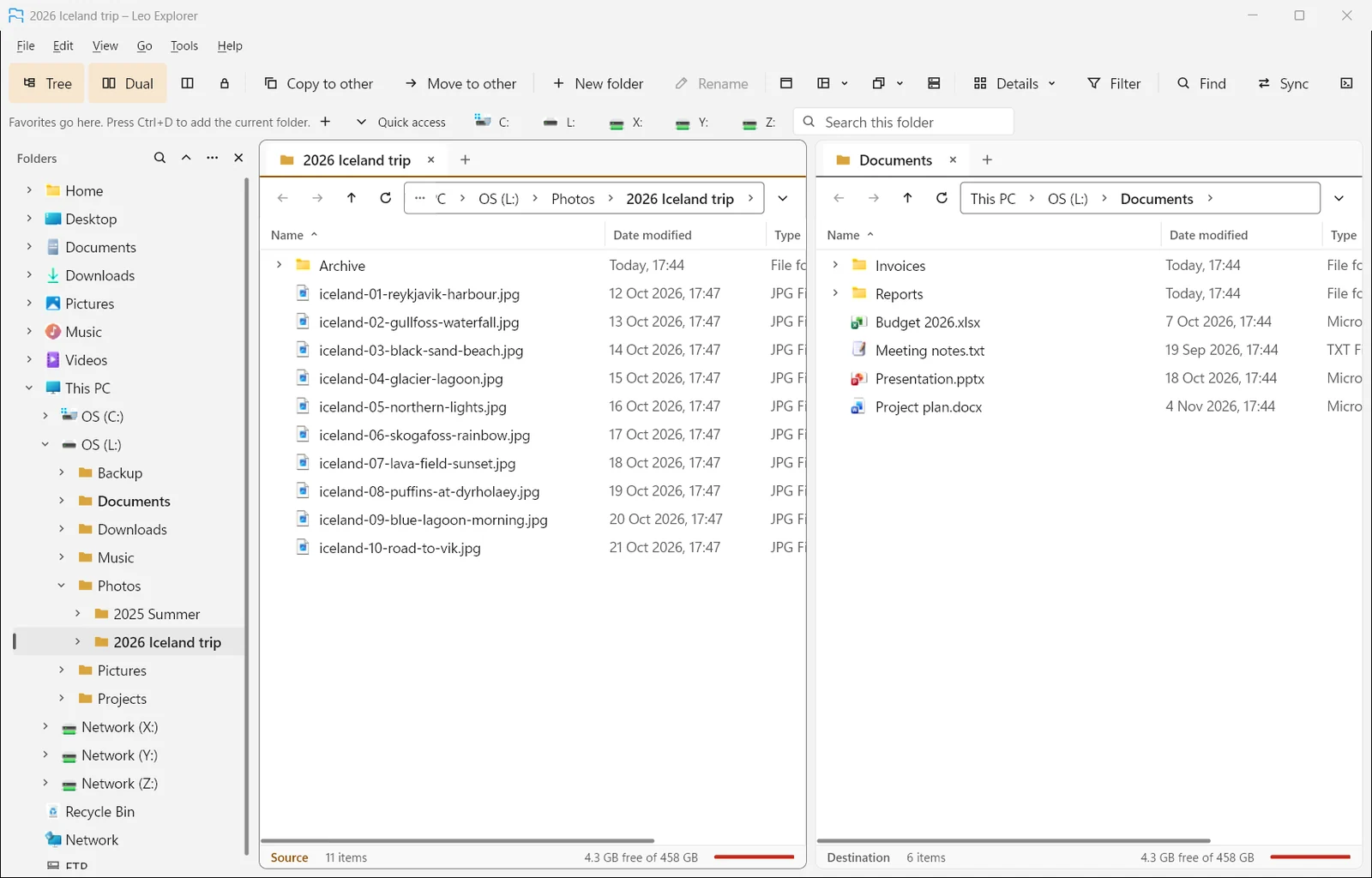
Leo Explorer with two folders side by side and the folder tree

Every command one search away

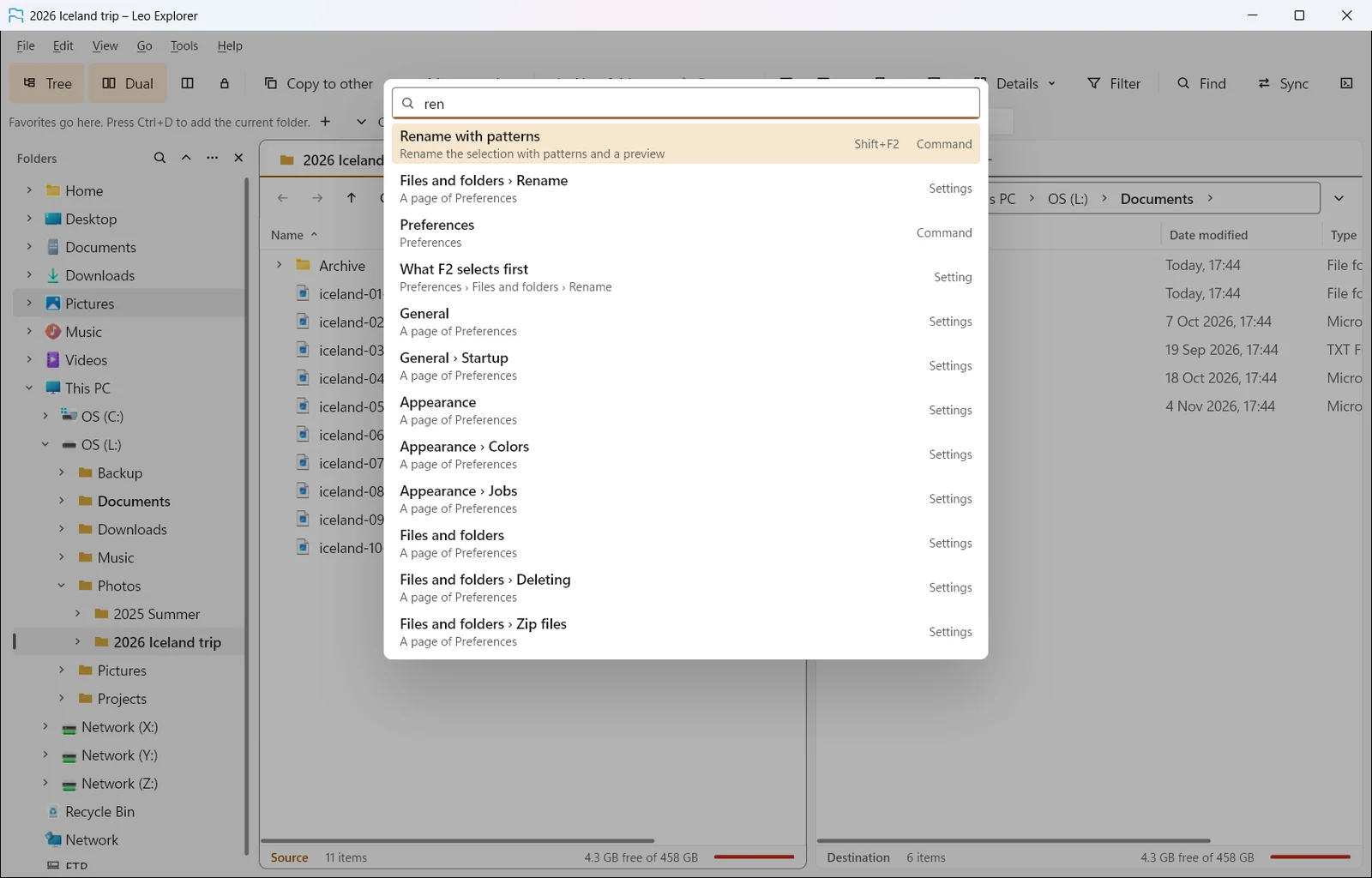
Press Ctrl+Shift+P and type a few letters. Find anything lists commands with their keys, settings, open tabs and folders, so you never need to learn where something lives. The first start offers a simple look or two folders, and the five keys worth knowing.

Learn more
Find anything listing commands and settings that match “ren”

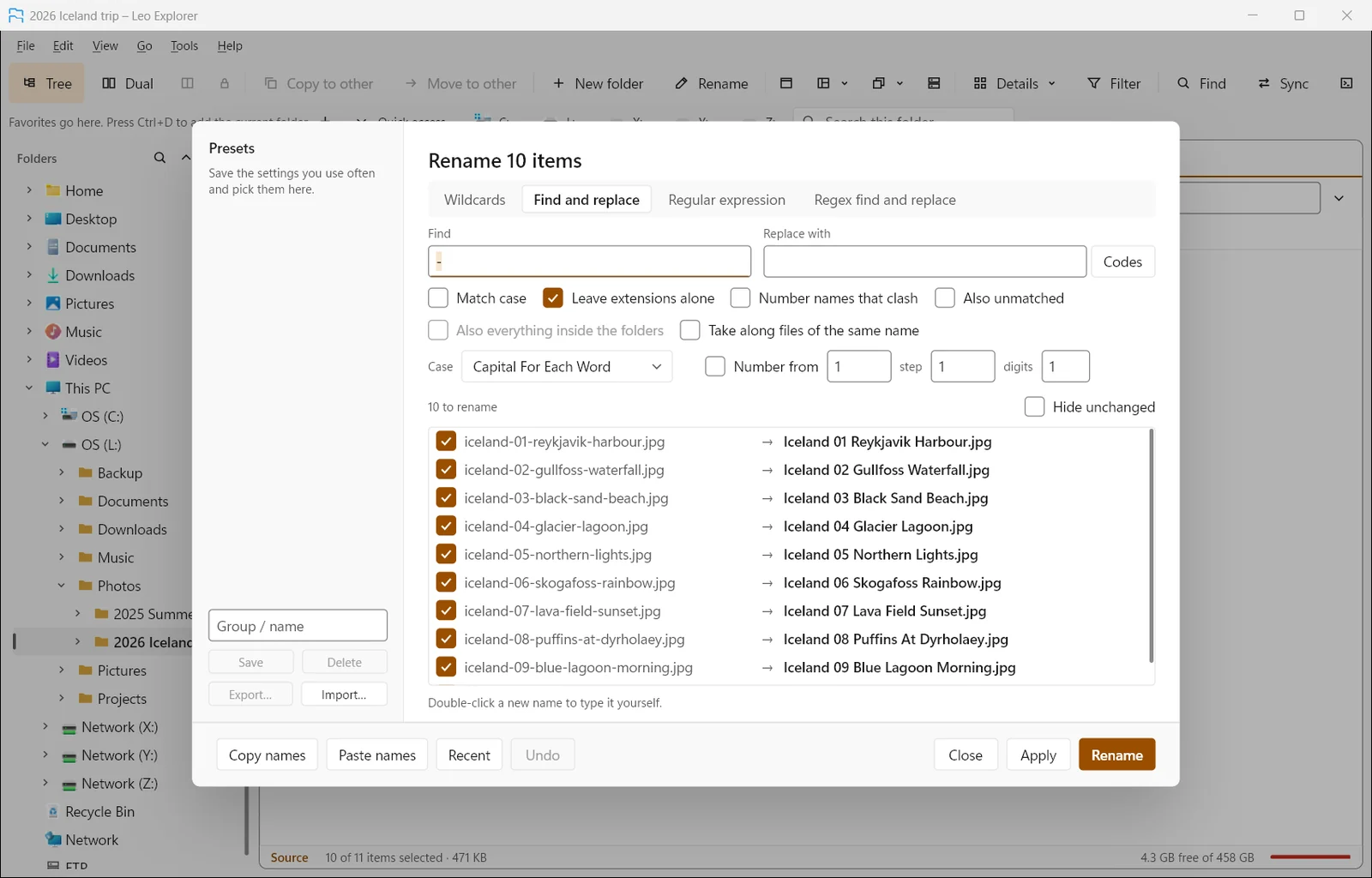
Rename hundreds of files at once

Patterns, find and replace, regular expressions, numbering, case changes, photo dates and music tags in names. A live preview shows every new name before anything changes, and Ctrl+Z puts it all back.

Learn more
Rename with patterns previewing new names for ten photos

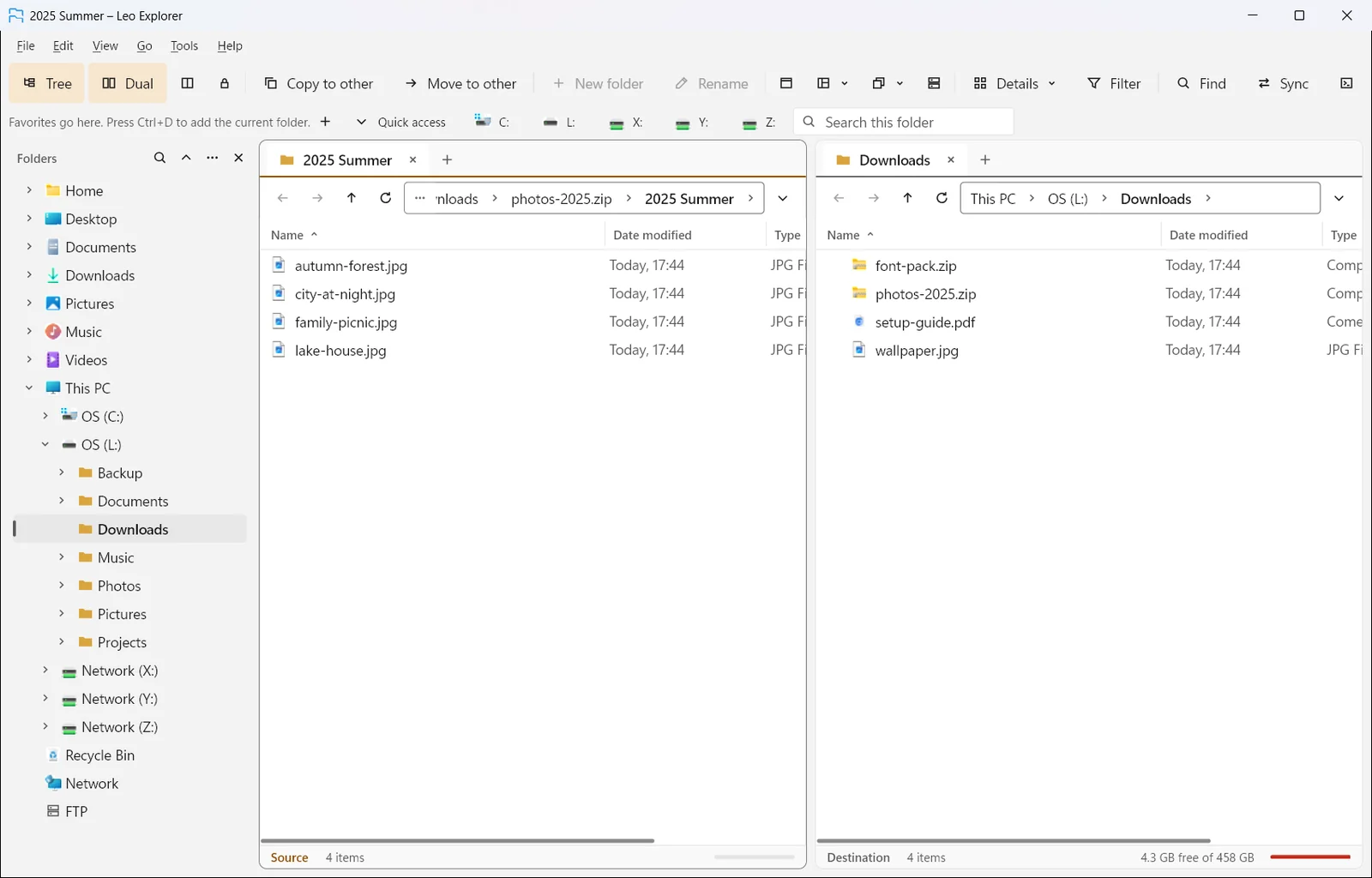
Archives and servers open like folders

Zip, 7z and tar archives, RAR (read only), and FTP, FTPS and SFTP servers browse like any other folder. Copy in and out, and resume a transfer that broke off.

Learn more
A zip archive open as a folder, beside the Downloads folder

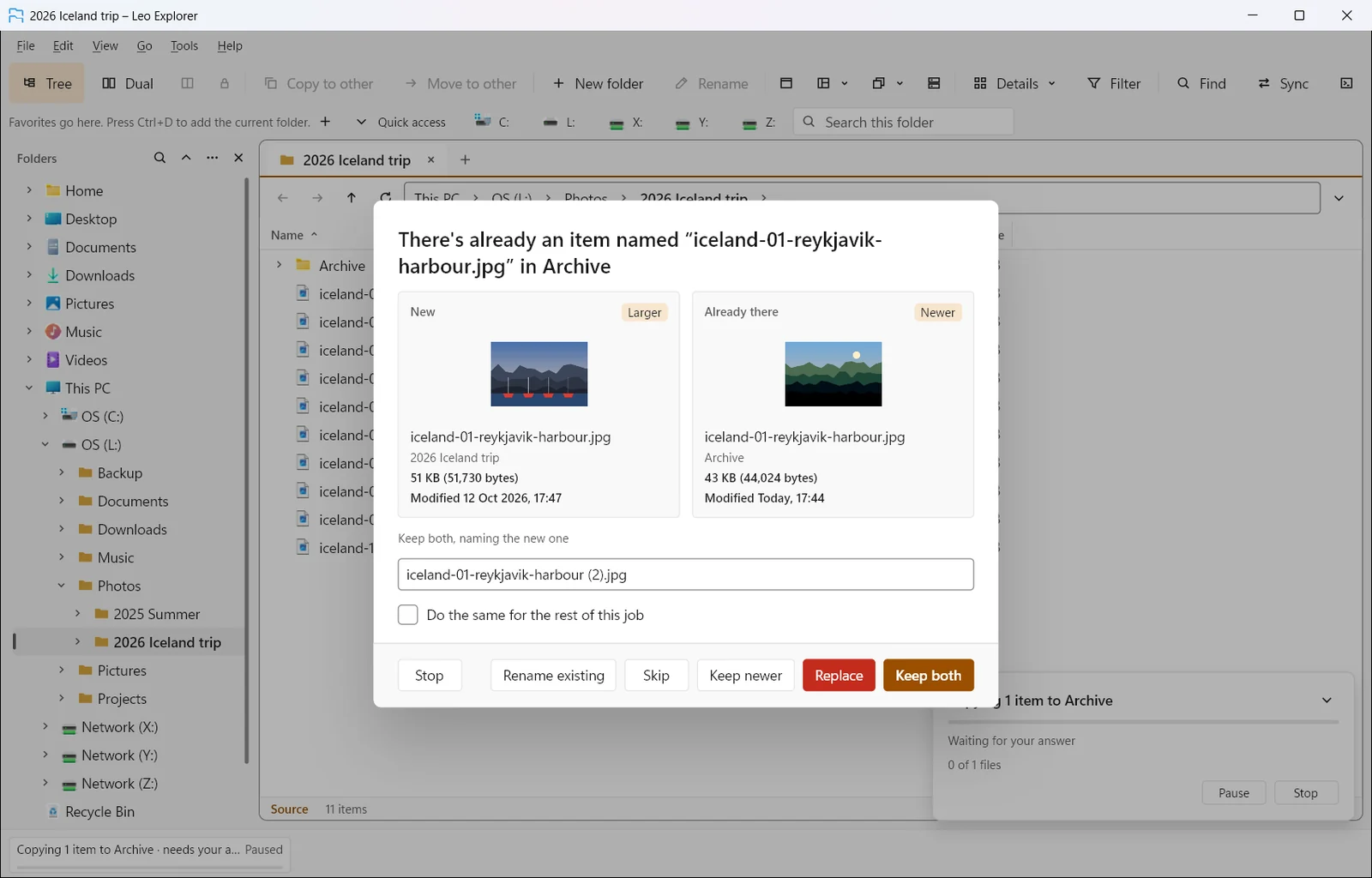
Copies you stay in control of

Jobs queue per disk, show speed and time left, and pause, resume or reorder. When a name is taken you get a clear choice, with both files side by side. Copies, moves, renames and deletions go on an undo list.

Learn more
A copy asking what to do when a file of the same name is already there

Try Leo Explorer

A 0 MB download. Installs for your account only, without an administrator prompt.